Instructions
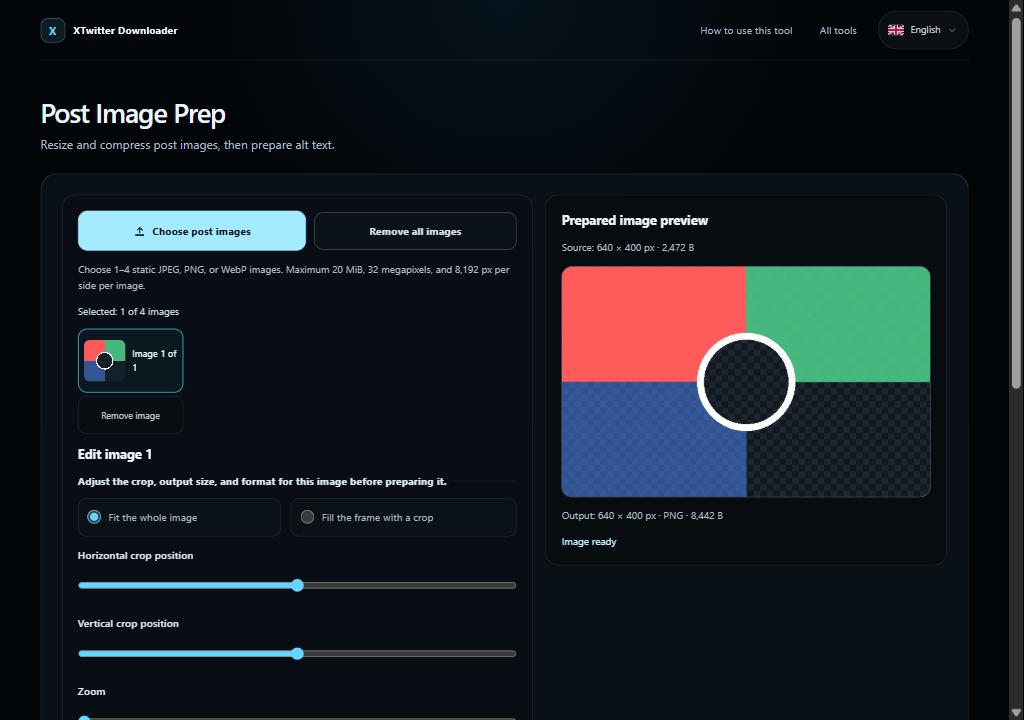
Choose one to four static JPEG, PNG, or WebP images. Animated images and video are not supported.
Select each image to choose whole-image fit or a crop, set output dimensions and format, and write its alt text. JPEG needs an explicit background color.
Prepare one image or all images, then download each prepared file. Copy alt text or download the ordered sidecar and paste descriptions into X yourself.
Limits and privacy
Each input is limited to 20 MiB, 32 megapixels, and 8,192 px per side. Each actual image output must be no larger than 5,000,000 bytes. PNG keeps transparency; JPEG uses the selected background. The alt-text field allows 1,000 UTF-16 code units as this tool’s conservative rule; X may count characters differently. Alt text is not embedded in the image, generated by AI, or applied to X. Processing stays in this browser; re-encoding may remove metadata such as EXIF.
Quick tip: Choose images, prepare each crop and alt description, then download the images and copy or export the ordered text for manual use on X.